
Invoice Template for Excel
This invoice template for Excel is a free .xlsx workbook that calculates everything for you: each line multiplies quantity by rate, and the subtotal, discount, your own tax rate and the total due update as you type. It has no macros, opens in Microsoft Excel and imports into Google Sheets, and prints on one page. Download it below, or fill in the same layout online if you would rather not handle formulas at all.
Free, no account. Opens the invoice generator with these lines filled in.
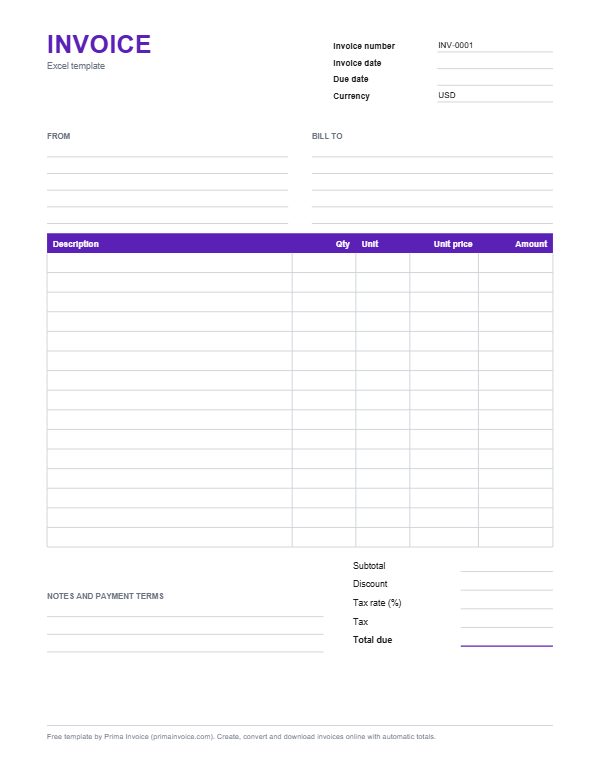
Example Excel invoice
These are typical lines for this kind of work. Edit, delete or add lines once the template is open.
| Description | Qty | Unit | Unit price | Amount |
|---|---|---|---|---|
| Website maintenance, monthly plan | 1 monthat $240.00 | month | $240.00 | $240.00 |
| Content updates | 3.5 hourat $60.00 | hour | $60.00 | $210.00 |
| Printed brochures, box of 250 | 2 boxat $89.00 | box | $89.00 | $178.00 |
| Product photography, per item | 12 itemat $15.00 | item | $15.00 | $180.00 |
| Domain renewal, 1 year | 1 yearat $18.00 | year | $18.00 | $18.00 |
| Courier delivery | 1 deliveryat $12.50 | delivery | $12.50 | $12.50 |
| Subtotal before tax | $838.50 | |||
Typical columns on an Excel invoice
| Column | What to put in it |
|---|---|
| Description (column A) | What you sold or did. Long descriptions wrap inside the cell, so you rarely need to widen the column. |
| Qty (column B) | A number only, such as 3 or 2.5. Typing text like "3 hrs" here breaks the multiplication, so put the unit in column C instead. |
| Unit (column C) | hour, item, day, month. Purely descriptive; the formulas ignore it. |
| Unit price (column D) | The price per unit as a plain number. Currency symbols come from the cell format, not from typing a symbol. |
| Amount (column E) | A formula, =ROUND(B16*D16,2), copied down every row. Leave it alone and it stays correct. |
| Discount, tax rate, total | Below the table. Type a discount amount and your tax rate in the tinted cells; tax and total are formulas. |
How the formulas in this workbook work
Open the file and you will see example lines in rows 16 onwards. Column E holds the line formula =ROUND(B16*D16,2): quantity times unit price, rounded to two decimal places. Rounding each line before adding them up matches how most invoicing software and accountants calculate, so your total never differs by a stray cent from the sum of the lines a client checks with a calculator.
Under the table, the subtotal is =SUM over the whole item range, including the empty rows, so new lines are counted automatically. The discount cell takes a plain amount. The tax cell multiplies the discounted subtotal by your tax rate and rounds it, and the total adds them together. Type 10% or 0.1 in the tax rate cell; both work because the cell is formatted as a percentage.
Empty rows show nothing because the amount format hides zeros. Fill in any of them and the amount appears; clear a row and it disappears again.
Why there are no macros, and why that matters
Microsoft's documentation is explicit that the .xlsx format cannot store VBA macro code; macro-enabled workbooks use the .xlsm extension instead. Our templates are plain .xlsx, which means there is nothing executable inside them. You will not see a security bar asking you to enable content, and your client or bookkeeper can open the file without warnings.
Everything the template needs is done with ordinary worksheet formulas. That keeps the file small, fast and compatible with other spreadsheet programs.
Filling in the template step by step
Start at the top: replace the placeholders in square brackets with your name, address, email and tax identifier if you have one, then the client's details on the right. Enter an invoice number, the invoice date and the due date. Keep the currency code cell accurate if you bill in something other than US dollars.
Next, overwrite the example lines with your own. Delete any you do not need by clearing the cells in columns A to D; do not delete column E, which holds the formulas. If you need more than fifteen lines, insert rows above the last item row and copy the formula in column E down, and the subtotal range will expand with the inserted rows.
Finally, add a discount if you agreed one, type your tax rate, check the total and write any notes and payment instructions at the bottom.
Using the template in Google Sheets and other apps
Google Sheets can import .xlsx files through File and Import, and it supports the same SUM and ROUND functions, so the totals keep working. You can also upload the file to Google Drive and open it with Sheets. Fonts may change slightly, so glance at the layout before you send.
LibreOffice Calc and other spreadsheet programs that read .xlsx also recalculate the formulas. If someone opens the file in a program that does not support formulas, the last calculated values are stored in the file as well, so they still see correct numbers for the example lines.
Saving and sending the invoice as a PDF
Clients should receive a PDF, not the editable workbook. In Excel, choose File, then Save As or Export, and pick PDF; the print area is already set to the invoice, and the page is set to fit one page wide. In Google Sheets, use File, Download, PDF. Name the file with the invoice number and client, for example INV-0042-Northwind.pdf, so it is easy to find later.
Keep the .xlsx version for your own records. Many people save one workbook per invoice in a folder per year; others duplicate the sheet inside one workbook for each new invoice. Either way, never reuse an invoice number.
Common spreadsheet mistakes to avoid
Typing a number with text, such as "5 pcs", turns it into text that the formula treats as an error or zero. Typing a total over a formula cell breaks the link between lines and total, which is the classic way spreadsheet invoices end up with wrong sums. If a total ever looks wrong, click the cell and check that the formula bar still shows a formula.
Copying lines from an old invoice can also copy old dates or numbers. Start each new invoice from a fresh copy of the template, or clear all inputs before you begin.
Tax, discounts and currencies in Excel
The template supports one tax rate applied after the discount, which covers most single-rate situations such as a standard VAT, GST or sales tax rate. If you need two different taxes on the same invoice, or different rates on different lines, the online generator handles up to two document taxes and per-line rates without any formula editing.
To bill in another currency, change the currency code cell and, if you like, the number format of the amount columns. Remember that some currencies have no decimals and some have three; the online generator follows the ISO 4217 minor units for each currency automatically.
A worked example with the sample lines
The workbook opens with six example lines: a $240 maintenance plan, 3.5 content hours at $60 ($210), two boxes of brochures at $89 ($178), twelve product photos at $15 ($180), an $18 domain renewal and a $12.50 courier delivery. The subtotal is $838.50. Type 10% in the tax rate cell and the tax becomes $83.85 and the total $922.35; enter a $38.50 discount first and the tax becomes $80.00 on $800, for a total of $880.00.
Those numbers are examples. Replace them, and the formulas will do the rest.
When to switch from a spreadsheet to the generator
A spreadsheet is fine for a handful of invoices a month. Once you need your logo on every invoice, a payment link, several currencies, quotes that convert into invoices, or receipts made from the same data, the online generator is quicker and removes the risk of a broken formula. It is free, needs no account and keeps your data in your browser.
If you want saved clients and products, automatic numbering, reminders and paid status tracking, a Prima Invoice account adds those on top.
Making the workbook look like your brand
Insert your logo with Insert, Pictures, and drag it into the top-right corner; resize it while holding Shift so it keeps its proportions. Change the violet header fill to your brand colour through the fill bucket, and swap fonts for the whole sheet by selecting everything and choosing a typeface. Widen or narrow columns by dragging the borders between column letters. If a long client name spills over, turn on Wrap Text for that cell.
Freeze panes above the item table if you build very long invoices, so headings stay visible while scrolling. Avoid merged cells inside the item table itself; they make copying and sorting awkward.
Protecting the formulas from accidental edits
If several people in your business use the workbook, lock the formula cells. Select the input cells (descriptions, quantities, units, prices, discount and tax rate), open Format Cells, clear the Locked checkbox on the Protection tab, then choose Review, Protect Sheet. Now colleagues can type wherever input belongs but cannot overwrite a calculation. A password is optional; if you set one, store it safely, because a forgotten sheet password is a nuisance to remove.
Keeping an invoice register alongside
Add a second sheet called Register with columns for invoice number, client, issue date, due date, amount, date paid and status. Each time you send an invoice, add a row. A filter then shows unpaid items instantly, conditional formatting can colour overdue rows red when the due date is before TODAY(), and a SUMIF across the status column totals what is still outstanding. It is a lightweight ledger that your accountant will appreciate at year end, and it makes duplicate numbers obvious before they happen.
Excel on a Mac, on the web and on phones
The workbook behaves the same in Excel for Windows, Excel for Mac and Excel for the web, because it relies only on basic functions available everywhere. On the mobile apps for iPhone, iPad and Android you can edit cells and export a PDF too, although inserting pictures and protecting sheets is fiddlier on a small touchscreen. If you invoice mostly from your phone, the browser-based generator is usually more comfortable: large input fields, automatic totals and a one-tap download.
Should the file open in Protected View after downloading, that is Windows marking it as coming from the internet. Click Enable Editing; nothing else is required, since the workbook has no active content.
Optional formula tweaks for advanced users
Comfortable with spreadsheets? A few small changes extend the template. Add a due-date formula such as =B11+30 so terms calculate automatically from the invoice date. Use a data-validation dropdown on the unit column to keep spelling consistent. Wrap the line formula in IF to show a dash for empty rows, or switch the tax cell to a percentage of selected lines only by multiplying with a helper column of ones and zeros. Test any edit on a copy first and compare totals with a calculator before relying on it for real billing. Simpler is safer: every extra formula is another thing that can quietly break.
Tips for your Excel invoice
Never type over column E
The amount column is formulas. Overwriting one with a number is the most common reason spreadsheet totals go wrong.
Keep quantities numeric
Put units in the unit column. "2.5" in quantity and "hours" in unit keeps the maths working.
Save a clean master copy
Keep an untouched copy of the template and start every invoice from it, so old data never leaks into a new bill.
Send PDFs, keep the workbook
Export to PDF for the client and archive the .xlsx with the same invoice number for your records.
Check the formula bar
If a figure looks odd, click it. A formula means it is live; a plain number means someone typed over it.
Name files by number and client
INV-0042-Northwind.xlsx and the matching PDF sort neatly and make any invoice findable in seconds.
Back up your billing folder
Store workbooks on a synced drive or external disk. Losing a laptop should never mean losing a year of invoice history, payment dates and client addresses.
Round only where the template does
Adding extra rounding elsewhere can make the total differ by a cent from the lines a client adds up by hand.
Frequently asked questions
Does this Excel invoice template contain macros?
No. It is an .xlsx file, a format that cannot store VBA macros, and all calculations use ordinary formulas. You will not be asked to enable content.
How do I add more rows to the Excel invoice?
Insert rows above the last item row so the subtotal range expands, then copy the amount formula from column E into the new rows.
Why does my Excel invoice total look wrong?
Usually a formula cell was overwritten with a typed number, or a quantity was entered as text such as "5 pcs". Check that column E and the totals still show formulas in the formula bar.
Will the formulas work in Google Sheets?
Yes. Import the .xlsx into Google Sheets and the SUM and ROUND formulas recalculate as you edit.
How do I change the tax rate in the spreadsheet?
Type your rate in the tinted tax rate cell, for example 8.25%. The tax amount and total recalculate immediately.
Can I use the Excel template for quotes or receipts?
You can edit the title, but the quote, estimate and receipt templates on this site already have the right fields, such as valid until dates or amount paid.
Can I lock the formulas so nobody overwrites them?
Yes. Unlock the input cells through Format Cells and the Protection tab, then use Review and Protect Sheet. Everyone can still type in the input cells, but the formula cells are protected.
Why does Excel open the invoice in Protected View?
Windows flags files downloaded from the internet. Click Enable Editing. The template contains no macros or other active content, so nothing else needs to be enabled.
Sources
- Microsoft: File formats that are supported in Excel
- Google: Import data sets in Sheets
- ISO 4217 currency codes
Sources checked 2026-10-25. Rules differ by country, so check with your local tax office or an adviser.
Related templates
Invoice Template for Word
An editable .docx invoice with item table, totals block and payment terms, ready for your logo and prices.
Printable PDF Invoice Template
A blank, printable and fillable PDF invoice form, plus the option to generate a finished PDF online.
Freelance Invoice Template
Hourly and project-based invoice for freelancers, with typical lines such as discovery calls, drafts, revisions and rush fees.
Fill it in online, download a PDF
The invoice generator opens with this template's lines. Add your prices, tax and logo, then download.