
Invoice Template for Word
This invoice template for Word is a free, editable .docx document with everything an invoice needs: your details and the client's, an invoice number and dates, an item table for descriptions, quantities and prices, a totals block for subtotal, discount, tax and total, and space for notes and payment terms. It contains no macros and opens in Microsoft Word, and in other word processors that read .docx. Word does not add up totals by itself, so if you want automatic maths, use the Excel version or fill in the same layout online.
Free, no account. Opens the invoice generator with these lines filled in.
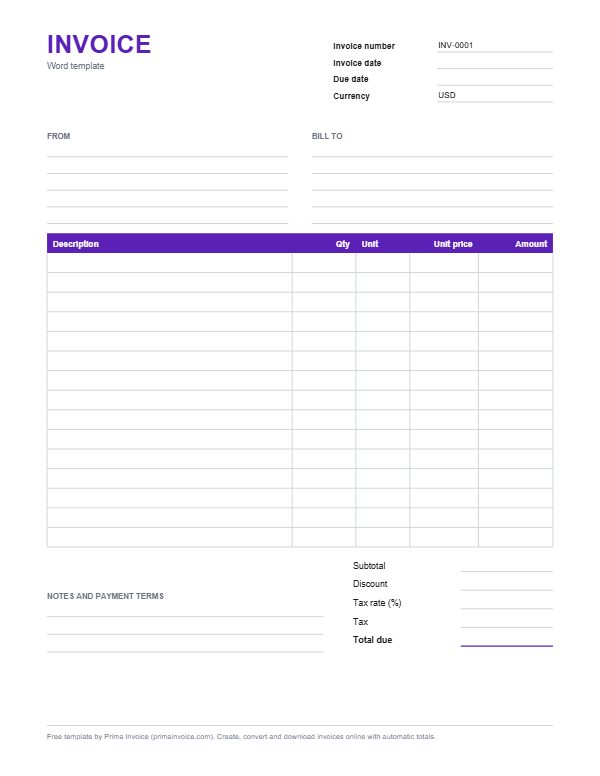
Example Word invoice
These are typical lines for this kind of work. Edit, delete or add lines once the template is open.
| Description | Qty | Unit | Unit price | Amount |
|---|---|---|---|---|
| Copywriting: product page, 600 words | 3 pageat $180.00 | page | $180.00 | $540.00 |
| Editing and proofreading | 2 hourat $55.00 | hour | $55.00 | $110.00 |
| Keyword research brief | 1 briefat $150.00 | brief | $150.00 | $150.00 |
| Newsletter draft | 2 issueat $125.00 | issue | $125.00 | $250.00 |
| Image sourcing and captions | 1.5 hourat $55.00 | hour | $55.00 | $82.50 |
| Video call: content planning | 1 callat $75.00 | call | $75.00 | $75.00 |
| Subtotal before tax | $1,207.50 | |||
Typical columns on a Word invoice
| Column | What to put in it |
|---|---|
| Description | The widest column. Write what you delivered in a short phrase; press Shift+Enter for a second line inside the same cell. |
| Qty | How many hours, items or days. Right-aligned so numbers line up neatly down the column. |
| Unit | hour, item, day, page, visit. It removes any doubt about what the quantity counts. |
| Unit price | Your price per unit. Type it with two decimals so the column looks consistent. |
| Amount | Quantity times unit price. In Word you type this yourself, or use a table formula field. |
| Totals block | Subtotal, discount, tax rate, tax and total due, right-aligned under the table where clients expect them. |
Who a Word invoice suits best
Word is a natural fit if you send a handful of invoices a month, care about how the document looks, and already write proposals or letters in Word. You can match fonts and colours to your letterhead, paste in a logo, add a personal note and send a polished PDF. Writers, translators, tutors, coaches and many consultants work this way.
The trade-off is arithmetic. A Word table is a layout, not a calculator, so you work out each amount and the total yourself. For long invoices, frequent invoicing or anything involving tax calculations, the Excel template or the online generator saves time and avoids arithmetic slips.
Editing the template, section by section
The top of the document has the title and two columns: From for your details and Bill to for the client. Replace each placeholder in square brackets; double-click a word to select it, or triple-click to select the whole line. Below that, fill in the invoice number, invoice date, due date and currency.
In the item table, the example lines show what typical entries look like. Type over them, delete rows you do not need (right-click, Delete Rows), or add rows by placing the cursor in the last cell and pressing Tab. Then complete the totals block: subtotal, any discount, your tax rate and amount, and the total due.
Finish with notes and payment terms. Bank details, a payment link, the due date in words and a thank-you line are all common here.
Adding your logo and letterhead
To put a logo on every page, double-click the top margin to open the header, then choose Insert, Pictures. Set the picture's text wrapping to In Front of Text or Square and drag it into position. Resize from a corner so it keeps its proportions. If you already have a letterhead document, you can copy the invoice table and totals into it instead.
Keep the logo file small. A large photo-sized image makes the document heavy and slows down emailing. A PNG a few hundred pixels wide is plenty for print and screen.
Optional: let Word calculate with formula fields
Word tables can hold simple formula fields. Click in an amount cell, choose Layout, Formula, and enter a formula such as =B2*D2, or =SUM(ABOVE) for a subtotal. Word does not update these automatically while you type: select the table and press F9 to refresh them. It works, but it is easy to forget the refresh, so double-check totals before sending.
If you would rather not think about it, the Excel template recalculates instantly and the online generator does everything for you.
Saving it as your own reusable template
Once the layout has your details and logo, save a master copy so you never retype them. In Word, choose Save As and pick Word Template, which uses the .dotx extension; opening a .dotx creates a fresh document each time and leaves the master untouched. Microsoft's file naming is consistent: .docx is a document, .dotx a template, and the versions ending in m (.docm, .dotm) are the ones that can contain macros. Our download is a plain .docx.
Store the master somewhere backed up, and give each sent invoice a file name with its number and client.
Exporting a PDF to send
Never send the editable .docx to a client. Choose File, Save As or Export, and select PDF. The PDF keeps your fonts and layout on any device and cannot be changed accidentally. Before exporting, turn off track changes and accept or reject any revisions, and remove comments, so nothing internal ends up in the client's copy.
Check the PDF once: logo position, page breaks, the total and the due date. Then attach it to your email with the invoice number in the subject line.
Opening the template in other word processors
Google Docs, LibreOffice Writer and other word processors can usually open .docx files. Tables, bold text and colours carry over well; exact spacing and fonts may shift slightly if a font is not installed. Upload the file to Google Drive and open it with Docs if you work in a browser. Review the layout before you rely on it, and export a PDF from the program you used.
A worked example with the sample lines
The example lines describe a content writing job: three product pages at $180 ($540), two editing hours at $55 ($110), a $150 keyword brief, two newsletter drafts at $125 ($250), an hour and a half of image sourcing at $55 ($82.50) and a $75 planning call. The subtotal is $1,207.50, which you would type into the totals block along with any discount and your tax.
In the online generator the same lines calculate automatically, and you can switch currency or add a second tax with a click.
Keeping Word invoices organised
Create one folder per year with subfolders for sent and paid invoices, or keep a simple list of invoice numbers, clients, amounts and paid dates. Number invoices in one continuous sequence. If you correct a sent invoice, issue a corrected version or a credit note rather than quietly changing the original, so your records always match what the client received.
Accessibility and readability
Use real table headers rather than bold text in the first row, so screen readers announce column names. Keep body text at a comfortable size, around 10 to 11 points, with good contrast; pale grey text looks elegant on screen but prints faintly. Give your logo alternative text through the picture's Alt Text option. These small habits help clients with visual impairments and make the exported PDF easier to read for everyone.
Paper size, margins and printing
The download is set up for US Letter with comfortable margins. If you bill clients in Europe, Asia, Africa or Australia, switch to A4 under Layout, Size; the table stretches to the new width automatically. When printing onto pre-printed letterhead stationery, increase the top margin so text clears your printed logo, and run a test sheet on plain paper first. Choose Print, Scale to fit paper size if a client asks for a printout in a different format from yours.
Styles, themes and consistent formatting
Word's built-in Styles keep headings, body text and table text consistent across every invoice. Modify the Normal style once (font, size, line spacing) rather than formatting paragraphs by hand, and change the colour scheme through Design, Colors to match your brand palette in a single click. Table Design offers banded rows and header shading; subtle banding helps clients follow long rows across the page, while heavy borders and clashing colours make an invoice feel cluttered.
Bulk invoices with mail merge
Membership organisations, tutors and landlords sometimes send near-identical bills to dozens of people. Word's Mail Merge can pull names, addresses, amounts and reference numbers from a spreadsheet into one master document and produce a personalised invoice per recipient. Each still needs its own unique number, so keep a number column in the source list. For anything beyond simple identical charges, a proper invoicing tool with saved clients and recurring schedules becomes easier than maintaining merge fields.
Signatures, stamps and document security
A handwritten signature is rarely required on an invoice, but some clients, particularly government departments or companies in countries where company seals are customary, ask for one. Scan your signature against white paper, crop it tightly, save it as a transparent PNG and insert it above a line labelled Authorised signature. Never leave a loose signature image in shared folders where anybody could reuse it.
If you worry about alteration after sending, export to PDF and, in Acrobat-compatible tools, restrict editing with a permissions password. Bear in mind determined people can bypass such restrictions; what really protects you is keeping your own archived copy and sequence of numbered originals.
Working with a bookkeeper or accountant
Bookkeepers prefer predictable inputs. Agree a naming convention, share a cloud folder where finished PDFs land, and send a monthly summary listing numbers, clients, amounts, tax and payment status. Avoid editing a sent document later; instead, raise a credit note or corrected invoice. Clean, consistent records shorten quarterly reconciliations and make year-end filing calmer and cheaper.
Tips for your Word invoice
Save a .dotx master
Store your logo and details in a Word Template so every new invoice starts clean, without editing last month's file.
Press F9 if you use formulas
Word formula fields only update when you refresh them. Select the table and press F9 before exporting.
Send a PDF, never the .docx
PDFs look the same everywhere and cannot be edited by accident. Keep the Word file for yourself.
Clear comments and revisions
Accept tracked changes and delete comments before export, so no internal notes reach the client.
Add rows with the Tab key
Place the cursor in the last cell of the item table and press Tab to add a new row with the same formatting.
Use Styles instead of manual formatting
Change the Normal style once and every invoice inherits the same font, size and spacing automatically.
Proofread names and figures aloud
Reading the client's company name, invoice number, bank details and total out loud catches typos that eyes skim past, especially transposed digits.
Frequently asked questions
Does the Word invoice template calculate totals?
No, Word tables do not calculate automatically. You can type the amounts or add table formula fields that refresh with F9. For automatic totals, use the Excel template or the online generator.
How do I add my logo to the Word invoice?
Open the header by double-clicking the top margin, choose Insert, Pictures, select your logo, then set text wrapping and drag it into position.
How do I add more lines to the item table in Word?
Click in the last cell of the table and press Tab, or right-click a row and choose Insert, Rows Below.
Can I open the Word invoice template in Google Docs?
Usually yes. Upload the .docx to Google Drive and open it with Google Docs, then check the layout, because fonts and spacing can shift slightly.
What is the difference between .docx and .dotx?
A .docx is a normal document. A .dotx is a Word template that opens a new copy every time, leaving the original unchanged. Files ending in .docm or .dotm can contain macros; this template does not.
How do I turn the Word invoice into a PDF?
Choose File, then Save As or Export, and pick PDF. Accept tracked changes and remove comments first so they do not appear in the client's copy.
How do I switch the Word invoice to A4 paper?
Open Layout, choose Size and pick A4. The table resizes to the new width; check page breaks before exporting the PDF.
Do I need to sign a Word invoice before sending it?
Usually not. A few clients, often public bodies or companies used to company seals, ask for a signature; insert a scanned signature image above an authorised signature line and export to PDF.
Can I protect a Word invoice from being changed?
Export it to PDF, which is much harder to edit casually, and keep your own archived original. Password restrictions on PDFs deter casual edits but are not foolproof.
Sources
Sources checked 2026-10-25. Rules differ by country, so check with your local tax office or an adviser.
Related templates
Invoice Template for Excel
An .xlsx workbook with live formulas for line totals, subtotal, discount, tax and total. No macros.
Printable PDF Invoice Template
A blank, printable and fillable PDF invoice form, plus the option to generate a finished PDF online.
Freelance Invoice Template
Hourly and project-based invoice for freelancers, with typical lines such as discovery calls, drafts, revisions and rush fees.
Fill it in online, download a PDF
The invoice generator opens with this template's lines. Add your prices, tax and logo, then download.